> For the complete documentation index, see [llms.txt](https://docs.vcheckglobal.com/llms.txt). Markdown versions of documentation pages are available by appending `.md` to page URLs; this page is available as [Markdown](https://docs.vcheckglobal.com/products/monitoring/alerts-dashboard.md).
# Alerts Dashboard
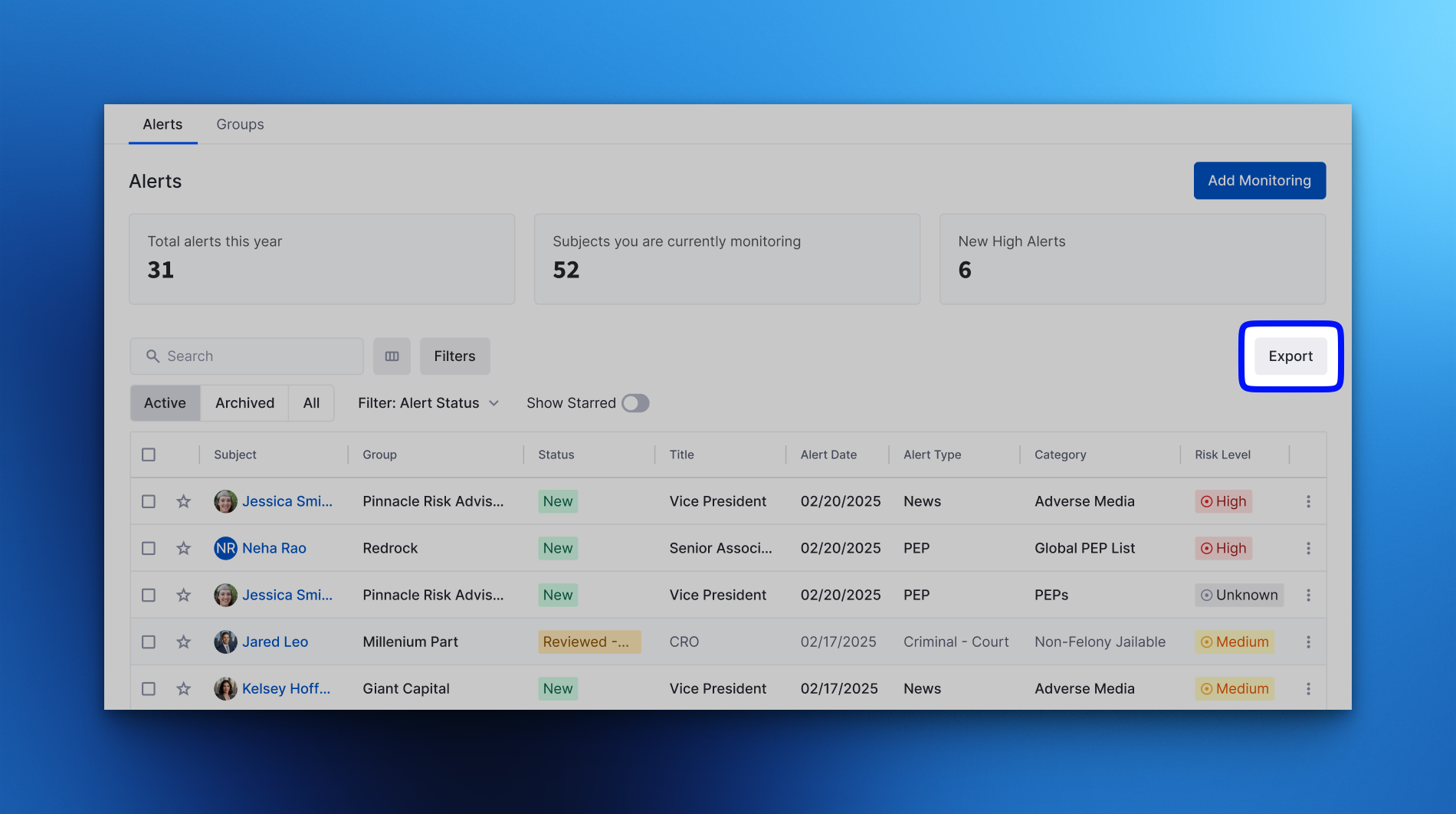
Review, filter and act on monitoring alerts from the Alerts list.
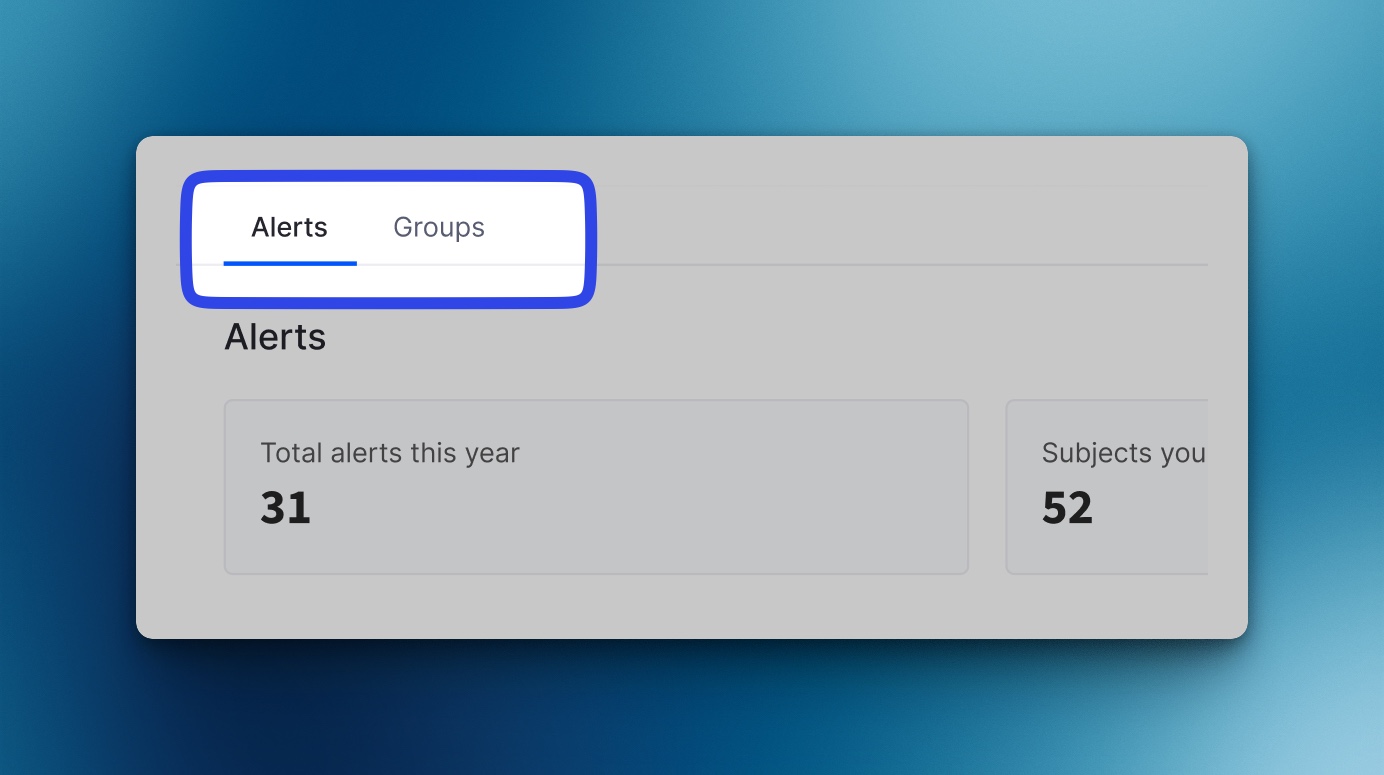
Monitoring organizes your results into two views, giving you complete control over your alerts and subjects:
**1. Alerts View**
This is your main dashboard for immediate action. The Alerts view shows all new findings—regardless of the subject's group—allowing you to see and manage every alert generated across your entire monitoring population from a single screen.
**2. Groups View**
Use the Groups view to segment your monitored subjects. By clicking on a specific group (e.g., "Sales Team" or "Executive Tier"), you can narrow down the list to see and manage only the alerts that pertain to the subjects within that particular group. This provides filtered, focused oversight.
#### Accessing Your Alerts
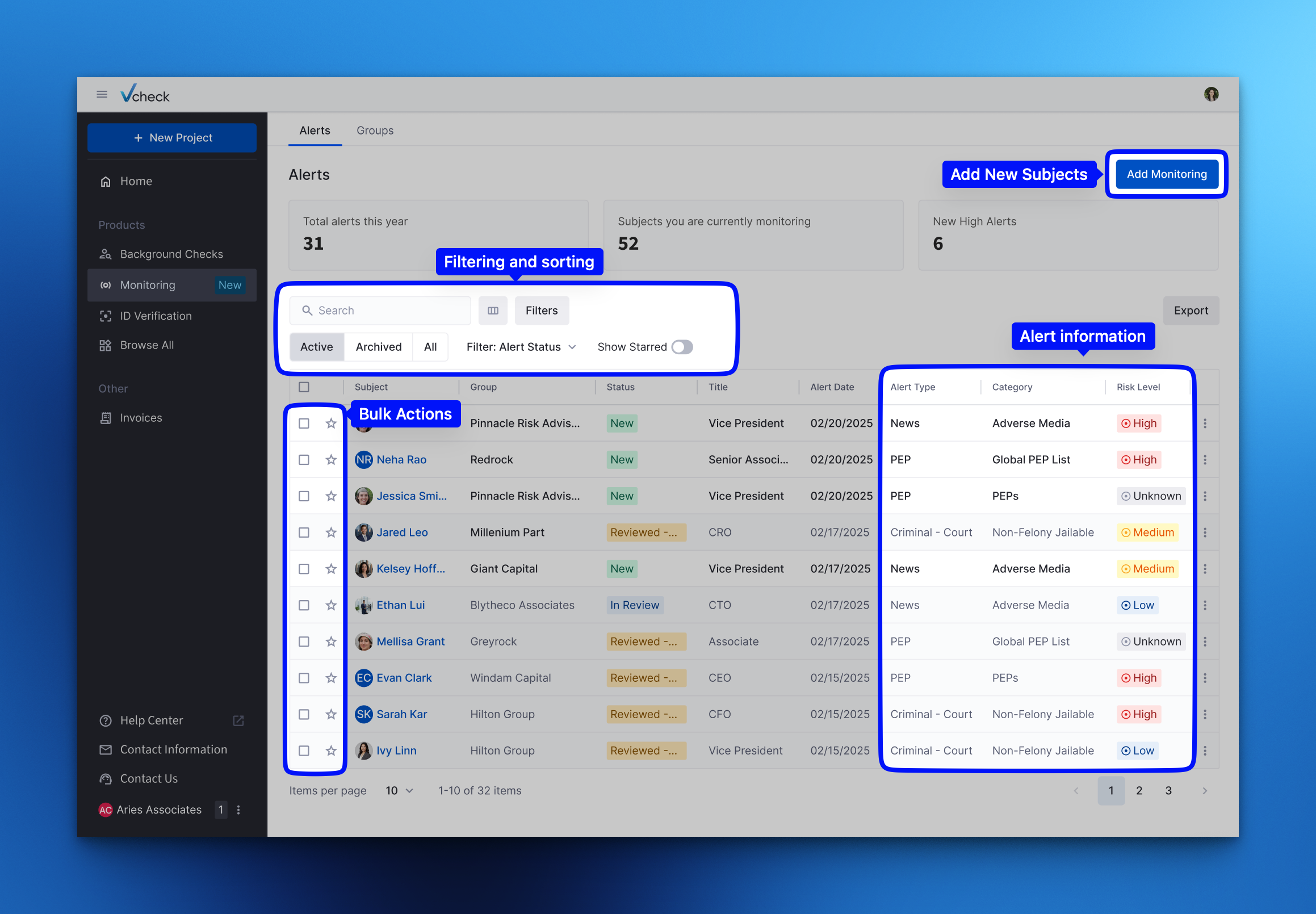
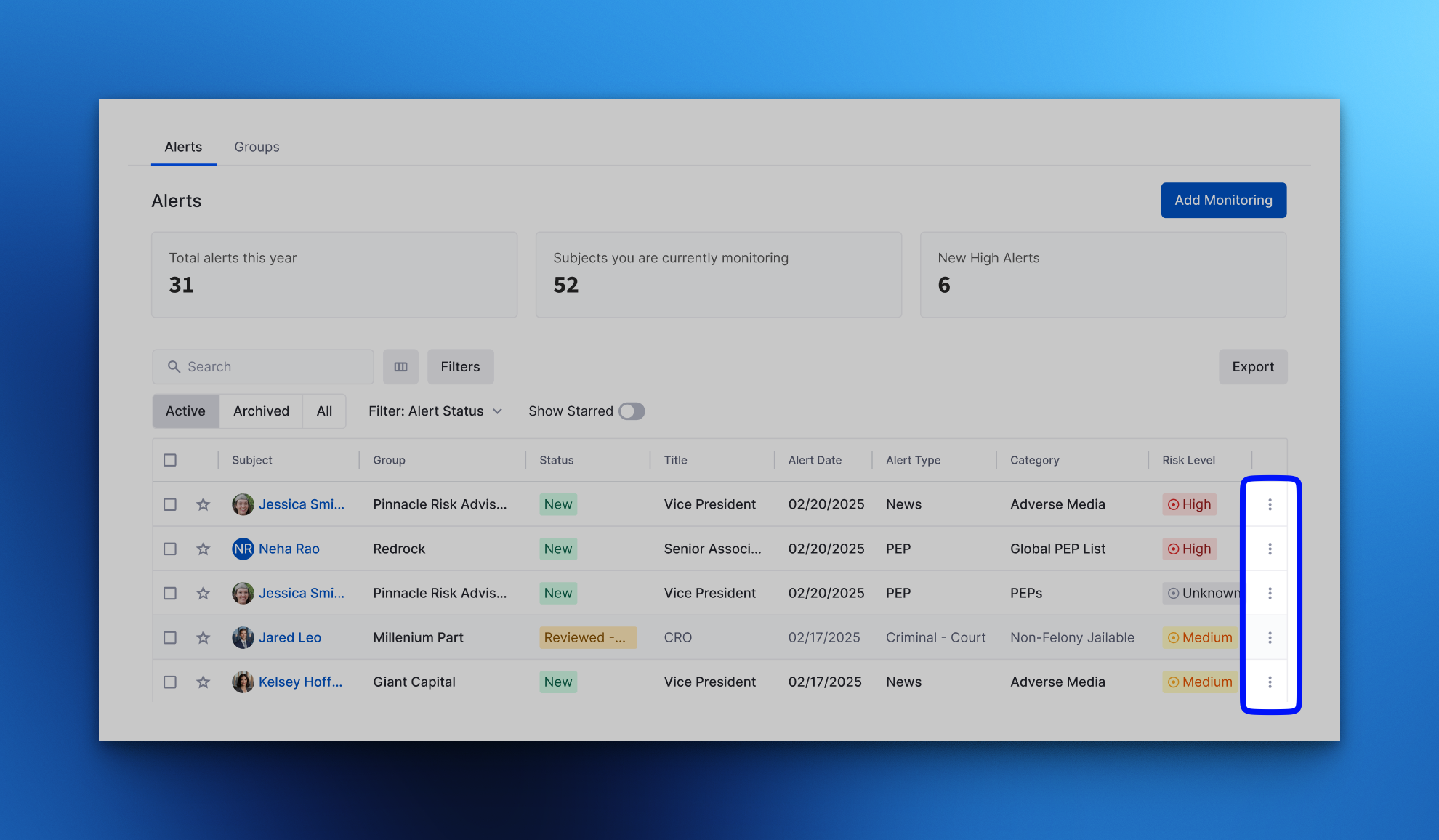
You’ll see the **Alerts List**, where you can see key metrics, filter alerts, perform actions in bulk, or dive into individual alerts for more detail.
### Understanding Alert Types
Alerts are automatically grouped into specific Categories and Types to help you appropriately assess and prioritize risk.
* Criminal
* Arrest
* Criminal - Court
* Criminal - Sex Offender Registry
* Criminal - Warrant
* News
* PEP (Politically Exposed Persons)
* Sanctions
* Watchlists
* Federal Civil & Bankruptcy Filings
### Working with Alerts
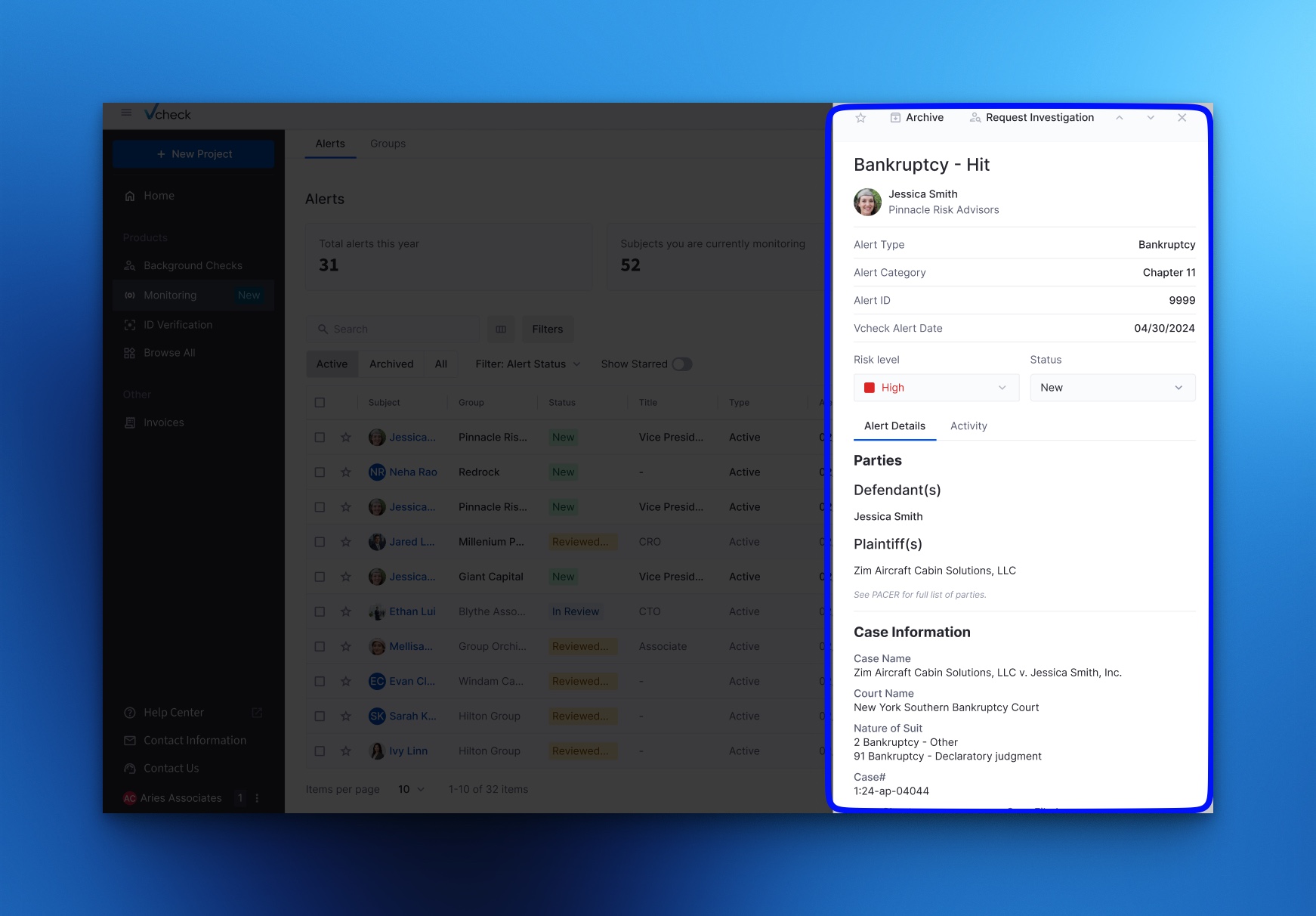
Click on any alert in the list to open it and view full details. Each alert includes:
* **Subject Name**
* **Risk Level** (can be updated)
* **Status** (e.g., In Review, Reviewed – Match, etc.)
* **Date of Alert**
* **Alert Type and Category**
* **Alert Details**
* **User Comments**
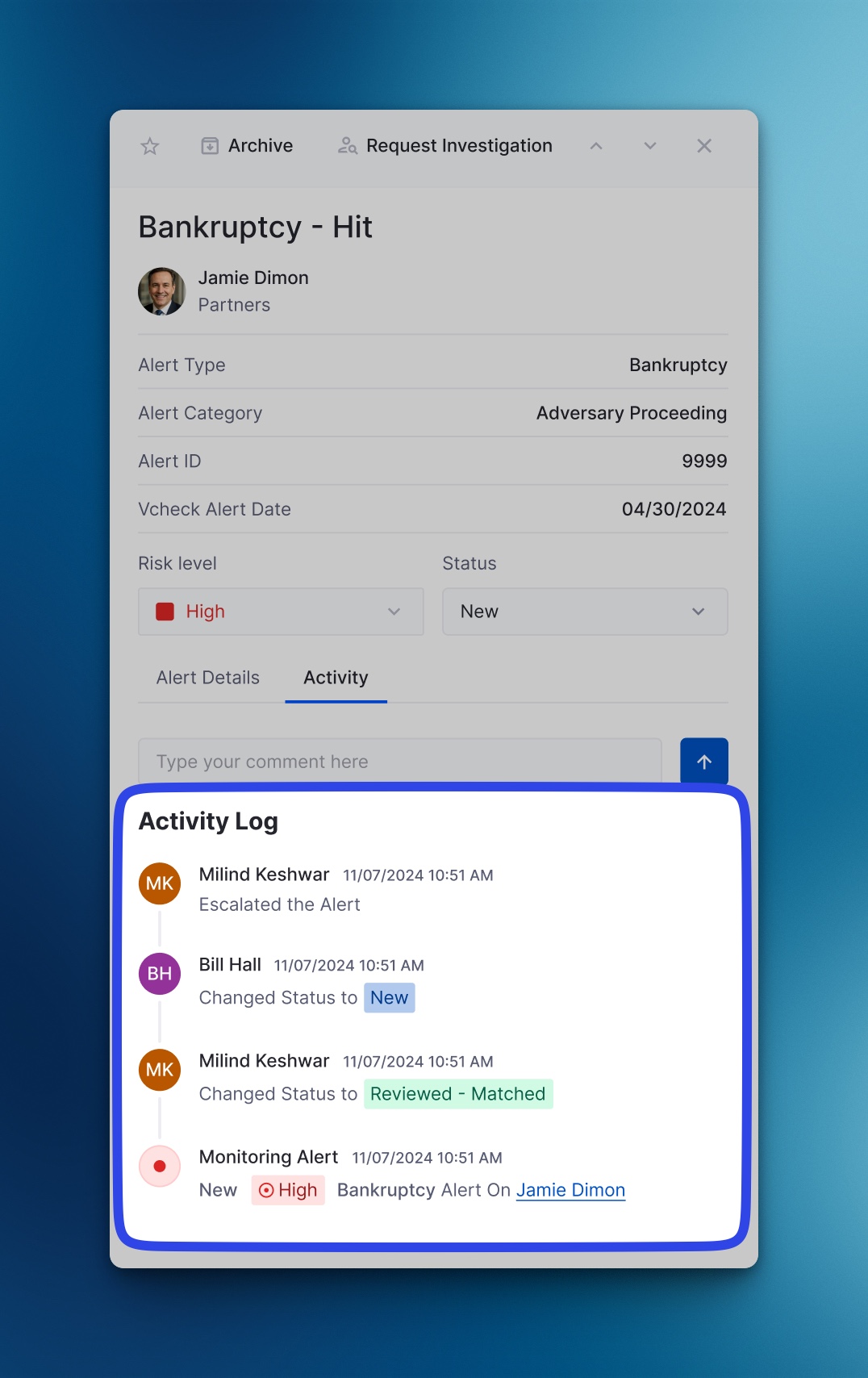
* **Activity Log** (an audit trail of changes)
### Updating the Risk Level
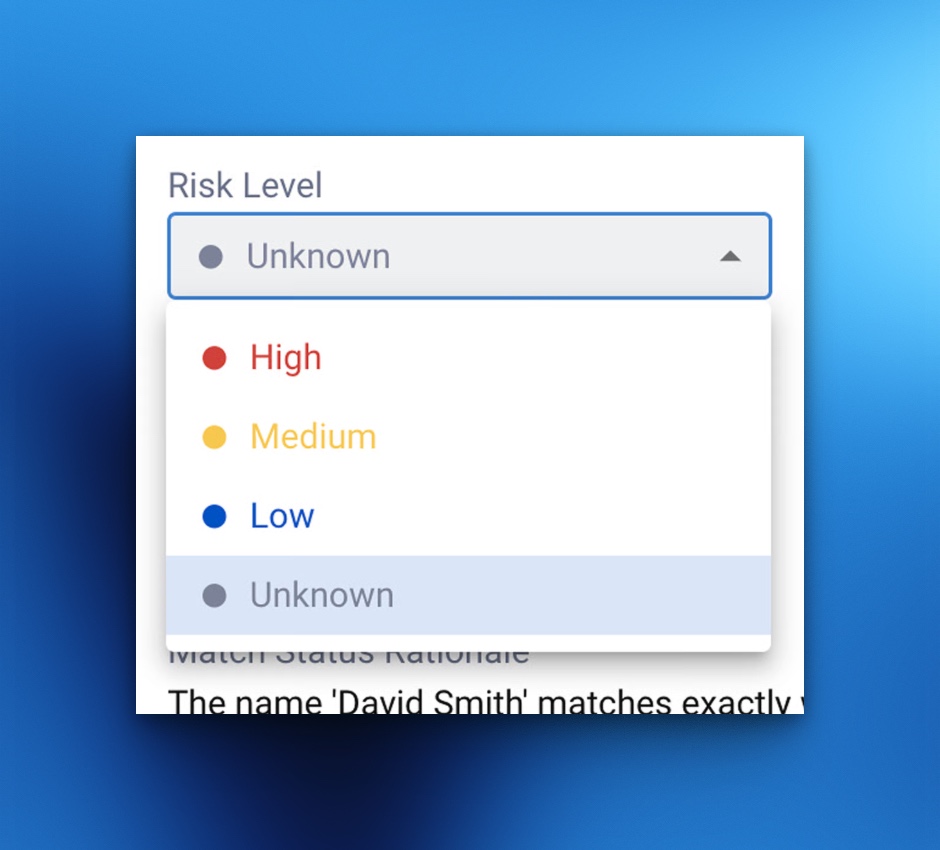
Each alert is automatically assigned a **Risk Level**, but you can adjust it:
1. Open the alert.
2. Click the **Risk Level** dropdown.
3. Select a new level that reflects your assessment.
### Changing the Alert Status
Keep your alerts organized by updating their status:
* **Reviewed - Match:** Use this status if the alert matches the subject.
* **Reviewed - False Positive:** Select this status if the alert does *not* match.
* **In Review:** This status indicates that the alert is still under review.
You can update the status from within the alert or directly from the Alerts List via the Actions menu.
### Commenting on Alerts
Add comments to share insights, context, or decisions with your team. Comments are visible to all users who have access to monitoring.
### Archive an Alert
To keep your dashboard focused:
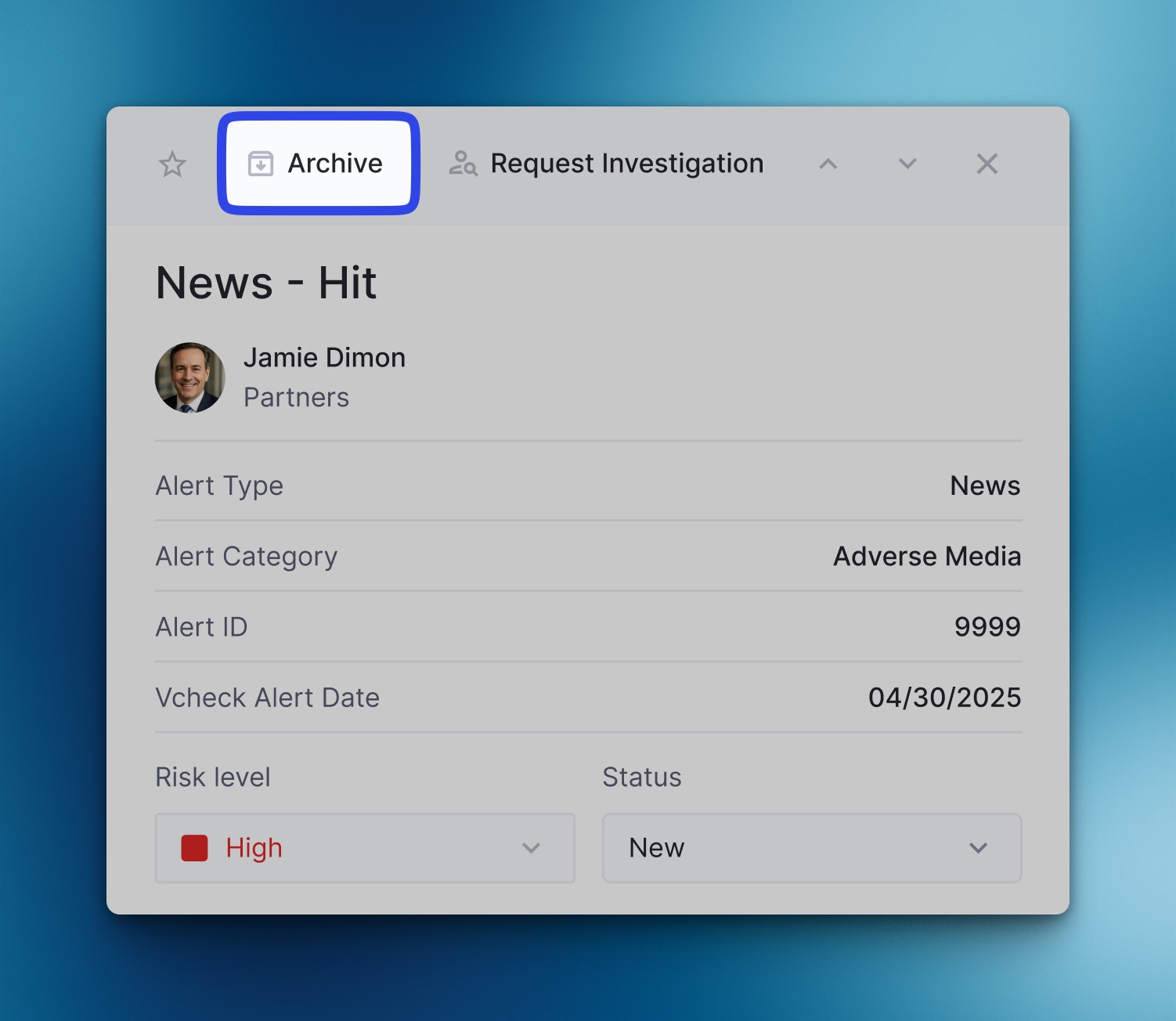
* Click **Archive** in the top right of any alert.
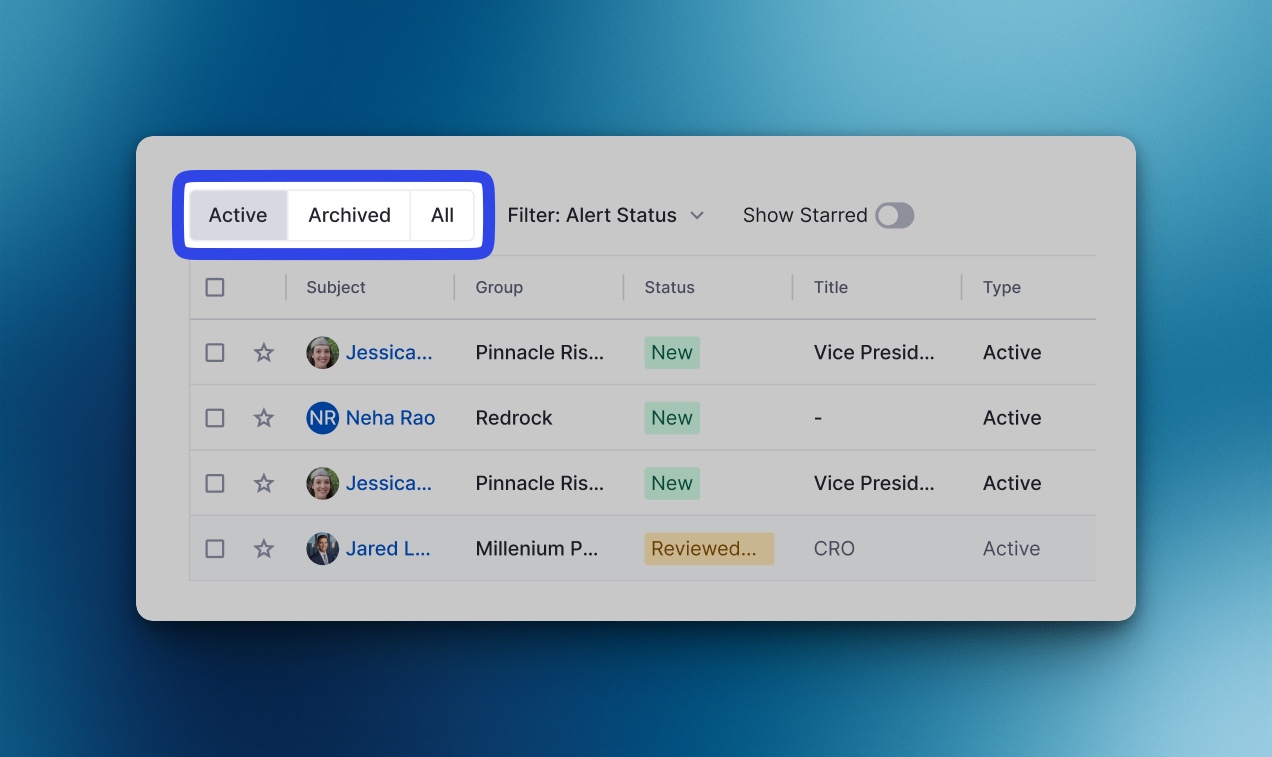
* Archived alerts are moved out of your active view but remain accessible via the **Archive** tab on your Alerts dashboard.
If you need to view any archived alerts, click on the “Archive” section on your alert dashboard. This will show you all the alerts you have archived, allowing you to access them whenever needed
#### Favorite an Alert
Click the **star icon** at the top of any alert to mark it as a favorite. Use this to highlight high-priority alerts for quick access.

#### Activity Log
Each alert includes a detailed **Activity Log** showing:
* When it was created
* Who made changes
* What updates were made
This provides full transparency and accountability across your team.
## Alerts List Features
#### Alert Actions
From the Alerts List, click the **three-dot menu** next to any alert to take quick actions
#### Export Alerts
Download your alert list as an Excel file by clicking the **Export** icon in the upper-right corner of the Alerts List.
### Email Notifications
Daily email notifications summarize the alerts created the previous day. One email notification is sent for each group of subjects. Email alerts are sent daily at 5:00 AM Eastern.
The emails include:
* **Summary:** Subject name and the count of the new alerts for each subject
* **Review Alerts button:** A link to the portal where customers can review and take action.
### Need Help?
If you have any questions or need assistance, please email our support team at
To reach our Customer Success team, please contact ****
---
# Agent Instructions
This documentation is published with GitBook. GitBook is the documentation platform designed so that both humans and AI agents can read, navigate, and reason over technical content effectively. Learn more at gitbook.com.
## Querying This Documentation
If you need additional information that is not directly available in this page, you can query the documentation by asking a question.
Perform an HTTP GET request on the following URL with the `ask` and `goal` query parameters:
```
GET https://docs.vcheckglobal.com/products/monitoring/alerts-dashboard.md?ask=&goal=
```
`ask` is the immediate question: it should be specific, self-contained, and written in natural language.
`goal` is what the user is ultimately trying to achieve, the reason they need the answer. Sharing it helps GitBook give you a better, more relevant answer. A goal is most helpful when it describes the outcome the user wants rather than restating the question. For example, with `ask=how do I create an API token`, a goal like `automate deployments from our CI pipeline` lets GitBook tailor the answer to that use case.
The response will contain a direct answer to the question and relevant excerpts and sources from the documentation.
Use this mechanism when the answer is not explicitly present in the current page, you need clarification or additional context, or you want to retrieve related documentation sections.